
PK365 Game Deposit
The PK365 deposit section is used by registered users to add funds to their account through the payment options provided by the platform. The available methods, instructions, minimum amounts, and processing times can change. This guide explains the general PK365 deposit process, what to check before making a deposit, and what to do if a transaction does not appear in your account.
What Is PK365 Deposit?
A deposit refers to the process of adding funds to your PK365 account so you can access paid features on the platform. Users typically access the deposit section from their account dashboard or wallet area after logging in.
Generally, deposits are added by selecting an available payment method, entering the amount you wish to add, and completing the payment through the provider’s process. Once confirmed, the funds are usually reflected in your account balance, though processing times can vary depending on the method used.
Before confirming any deposit, it’s important to check the selected payment method carefully, including the amount, account or payment details, and any fees or minimum/maximum limits that may apply. Reviewing this information helps avoid errors, such as sending funds through the wrong method or entering an incorrect amount.
Users should check the methods currently displayed on their account.
How to Deposit Money on PK365
Step 1 – Login
Open the PK365 website or app and sign in to your account.
Step 2 – Select Deposit
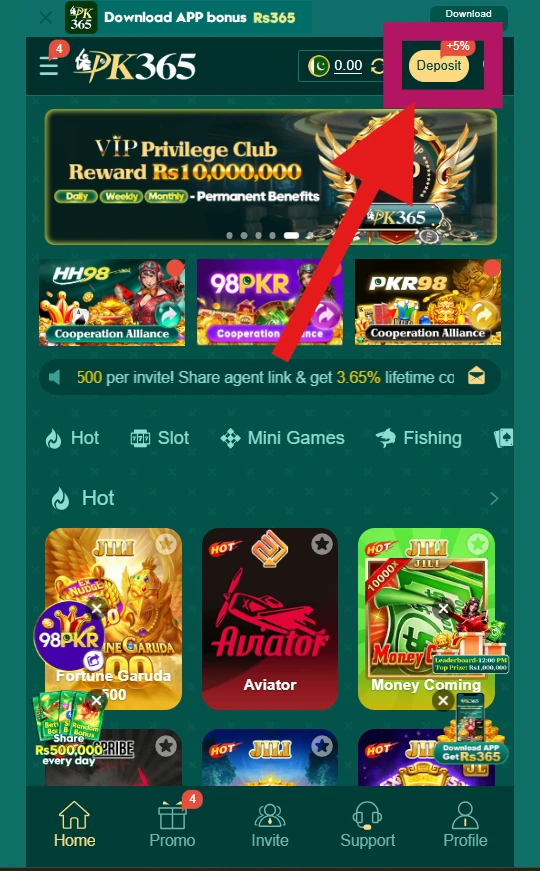
Tap the Deposit button, visible in the top navigation area of the homepage (shown with a “+5%” bonus tag on the interface).
Step 3 – Choose a Payment Method
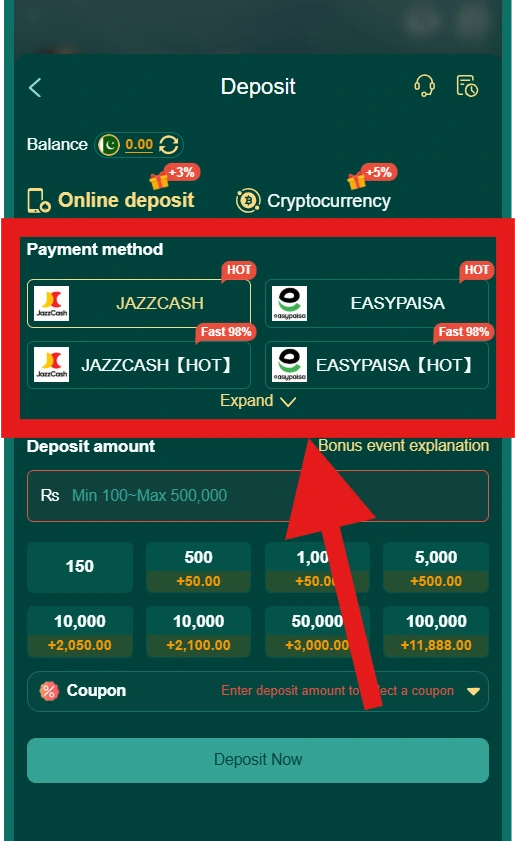
On the Deposit page, select between the two main options shown:
- Online deposit (includes methods like JazzCash and EasyPaisa)
- Cryptocurrency (USDT)
Step 4 – Enter the Deposit Amount
Enter your desired amount in the “Addition amount” or “Deposit amount” field. The interface displays a minimum and maximum range next to this field, along with quick-select amount buttons that may include bonus amounts.

Step 5 – Check the Transaction Details
Before confirming, review:
- The amount entered
- The selected payment method
- The exchange rate (shown for cryptocurrency deposits)
- Any coupon or bonus applied
- The reminder message displayed on the page (e.g., checking the recharge address carefully)
Step 6 – Complete the Payment
Tap Deposit Now and follow the instructions for your selected payment method.
Step 7 – Check Your Account Balance
Return to the Deposit page or your account dashboard and confirm your balance has updated, shown at the top of the Deposit screen.
PK365 Deposit Methods
Based on the current interface, PK365 offers two main deposit categories:
Online Deposit
This includes locally supported payment options such as JazzCash and EasyPaisa, each with standard and “HOT” variants shown on the payment method selection screen. An “Expand” option reveals additional methods beyond those initially displayed.
For online deposits, the interface currently shows a deposit range of Rs 100 to Rs 500,000, with preset quick-select amounts (e.g., 150, 500, 1,000, 5,000, up to 100,000), some of which include a bonus amount shown alongside them.
Cryptocurrency
PK365 also supports depositing via Cryptocurrency, specifically USDT. This option displays a live exchange rate and a separate deposit range (shown as roughly Rs 278 to Rs 2,771,6xx on the current interface, though the exact upper limit was partially cut off in the screenshot). A “Wallet download” link is also shown for this method.
PK365 Deposit Requirements
Before starting a deposit, users generally need:
- An active, registered PK365 account
- Valid login credentials
- A supported payment method (Online deposit via JazzCash/EasyPaisa, or Cryptocurrency via USDT)
- Sufficient funds in the selected payment account or wallet
- Correct payment or wallet address information, especially for cryptocurrency deposits
- A stable internet connection
Note: The interface displays a reminder specifically for cryptocurrency deposits, warning users to carefully check the recharge address before sending funds to help ensure the safety of their money. This is worth highlighting prominently since crypto deposits sent to an incorrect address typically can’t be reversed.
PK365 Deposit Amount
The amount you can deposit depends on the payment method selected, as shown on the current interface:
Online Deposit (JazzCash/EasyPaisa)
- Minimum: Rs 100
- Maximum: Rs 500,000
- Quick-select preset amounts are available (e.g., 150, 500, 1,000, 5,000, 10,000, 50,000, 100,000), some of which include an additional bonus amount shown next to the preset.
Cryptocurrency (USDT)
- Minimum and maximum amounts are shown directly on the deposit screen and are based on the live exchange rate at the time of deposit (displayed as an approximate range on the interface, e.g., Rs 278 up to over Rs 2.7 million).
- The exchange rate is shown and refreshes, so the equivalent crypto amount may change between viewing and confirming.
Before confirming any deposit:
- Check the amount field carefully
- Note whether a bonus applies to your selected amount
- Review the exchange rate if depositing via cryptocurrency
- Confirm whether a coupon can be applied to your deposit amount
PK365 Deposit Fees
Are There Deposit Fees?
Based on the current interface, PK365 does not display a separate line-item deposit fee. Instead, the Deposit page shows bonus amounts attached to certain deposit tiers (e.g., depositing Rs 1,000 shows a “+50.00” bonus, depositing Rs 100,000 shows a “+11,888.00” bonus), rather than any additional charge to the user.
For cryptocurrency deposits, the interface shows a live exchange rate, which functions as the conversion rate between USDT and the local currency rather than a stated platform fee, though rate fluctuations could effectively affect the amount received.
How to Check for a Fee or Bonus
Before completing a deposit, users should:
- Review the “Deposit amount” or “Addition amount” section for any bonus shown next to their selected amount
- Check the live exchange rate if depositing via cryptocurrency
- Look for any note in the “Bonus event explanation” or “Coupon” section, which may affect the final amount credited
PK365 Deposit Processing Time
Why Can a Deposit Take Time?
Deposit processing time can vary depending on several factors, including:
- The payment method selected (Online deposit vs. Cryptocurrency)
- The payment provider’s own processing speed
- Whether the transaction requires additional verification
- Network or blockchain confirmation times, in the case of cryptocurrency deposits
- Temporary technical issues on either the payment provider’s or platform’s side
The current interface doesn’t display a specific guaranteed processing time, so users should expect that most deposits are reflected fairly quickly once payment is completed, but delays can occasionally occur.
What to Do While Waiting
If a deposit hasn’t appeared yet:
- Check your balance at the top of the Deposit page, which can be refreshed using the reload icon shown next to it
- Avoid submitting the same payment again while waiting
- Keep your transaction reference or receipt in case you need to contact support
How to Check PK365 Deposit Status
The PK365 interface includes a transaction history icon on the Deposit page (shown near the top, next to the support/headset icon), which likely allows users to view past deposit activity and its current status.
Check Your Transaction History
To check whether a deposit has been completed:
- Go to the Deposit page.
- Select the transaction history icon, located in the top-right area of the screen.
- Locate your recent deposit and review its listed status.
Common Status Terms
Platforms like this typically display statuses such as:
- Pending
- Processing
- Completed
- Failed
- Rejected
PK365 Deposit Not Showing
If you’ve completed a payment but your PK365 balance hasn’t updated, here’s what to do:
- Don’t immediately submit another deposit. Sending a second payment before confirming the status of the first can create confusion or duplicate transactions.
- Refresh your balance. Use the refresh icon next to your balance at the top of the Deposit page, as the display may simply not have updated yet.
- Check the transaction status. Go to the transaction history section (accessible via the icon near the top of the Deposit page) and check whether the payment shows as pending, processing, completed, or failed.
- Check the payment account you used. Confirm the payment actually went through on your JazzCash, EasyPaisa, or crypto wallet’s end, and that it wasn’t declined or reversed.
- Confirm the transaction details. Double-check the amount sent and, for cryptocurrency deposits, that funds were sent to the correct wallet address shown on the platform at the time of payment.
- Keep your transaction reference or receipt. This will be needed if you contact support.
- Wait if the payment is marked pending. Some transactions take additional time to confirm, particularly cryptocurrency deposits awaiting network confirmations.
- Contact official customer support if the issue isn’t resolved. Use the Customer Service option available on the platform (shown as a headset icon on the Deposit page) and provide your transaction details.
PK365 Deposit Failed
If a deposit doesn’t go through, there are several possible causes:
- Incorrect payment information, such as an incorrect wallet address for cryptocurrency deposits, or mismatched account details for JazzCash/EasyPaisa
- Insufficient funds in the payment account used to make the deposit
- Unsupported payment method, attempting to use a method not currently listed on the Deposit page
- Transaction limit exceeded, the amount entered falls outside the minimum/maximum range shown for the selected method
- Network interruption during the payment process
- Payment-provider issue on the JazzCash, EasyPaisa, or crypto network’s end
- Account restriction on either the payment method or the PK365 account
- Temporary technical problem with the platform or payment gateway
What to Do
- Check the amount entered against the minimum/maximum shown on the Deposit page
- Confirm the payment method and account details were entered correctly
- Check your payment provider’s app or statement to see if the transaction actually completed on their end
- Try again only after confirming the first attempt truly failed (not just pending)
- Contact official PK365 support if the issue persists, providing your transaction details
PK365 Deposit Pending
A deposit may show as pending while it’s still being processed or confirmed. This is particularly common with cryptocurrency deposits, which often require network confirmations before the transaction is finalized.
If your deposit remains pending:
- Check the transaction status in your transaction history on the Deposit page.
- Don’t repeatedly submit the same payment. Sending the payment again while the original is still processing can lead to duplicate transactions or confusion.
- Keep your transaction reference or receipt handy, including the amount, date/time, and payment method used.
- Check whether the payment provider has completed the transaction on their end (e.g., checking your JazzCash/EasyPaisa app, or confirming the crypto transaction on a blockchain explorer if applicable).
- Contact official PK365 support if the status remains unresolved after a reasonable amount of time, providing your transaction reference and details.
PK365 Deposit Reversed or Refunded
Note: None of the screenshots provided show a “reversed” or “refunded” status on the PK365 interface, so this section is written cautiously and should be verified before publishing, or removed if this status isn’t actually supported by the platform.
What a Reversed Transaction Means
If a deposit is reversed, it generally means the payment was returned to the sender rather than credited to the PK365 account. This can sometimes happen due to a failed verification, an incorrect payment detail, or a technical issue on the payment provider’s side.
Why a Payment Might Be Returned
Possible reasons could include:
- Payment sent to an incorrect address or account
- A failed or incomplete transaction on the provider’s end
- A technical or processing error
How to Check the Payment Status
Check your transaction history on the Deposit page to see if a reversed or refunded status is shown. Also check your payment provider’s app or statement to confirm whether the funds were returned there.
When to Contact Support
If you believe a deposit was reversed or refunded and you’re unsure why, contact official PK365 customer support with your transaction reference and details.
PK365 Deposit Receipt and Transaction ID
Keeping a record of your deposit details can help resolve any issues quickly if something goes wrong. Useful information to save includes:
- Transaction ID, usually shown in your transaction history after a deposit is made
- Payment reference, provided by your payment method (e.g., JazzCash, EasyPaisa, or crypto transaction hash)
- Date and time of the transaction
- Amount deposited
- Payment method used
- Confirmation message shown by PK365 or your payment provider after completing the transaction
Where to Find This Information
This information is typically available in the transaction history section of the Deposit page (accessible via the history icon near the top of the screen), as well as in your payment provider’s own transaction records or receipts.
Security Warning
Users should avoid posting screenshots of their deposit receipts, transaction IDs, or payment confirmations on public websites, social media, or unofficial forums. These can sometimes contain personal or account-identifying information that could be misused by others.
PK365 Deposit Security Tips
Keeping your deposits and payment information secure is just as important as securing your login credentials. Recommended practices:
- Use the correct website address, always access PK365 through the official site or app rather than unknown links.
- Check payment details before confirming, particularly the wallet address for cryptocurrency deposits, and the account details for JazzCash/EasyPaisa transfers, since incorrect details can result in lost funds.
- Never share your password.
- Never share login codes.
- Don’t give payment credentials (card numbers, PINs, wallet keys) to anyone claiming to represent PK365 support.
- Avoid unofficial payment instructions, only follow deposit steps and payment details shown directly on the official PK365 interface.
- Keep transaction receipts until you’ve confirmed the deposit was successfully credited.
- Don’t use someone else’s payment account to make a deposit unless the platform explicitly permits it.
- Avoid making payments through suspicious links sent via message, email, or social media.
How to Avoid Fake PK365 Deposit Pages
Because deposit and payment pages are a common target for scams, it’s worth taking extra care before entering any payment information.
Check the Website Address
Before making a deposit, verify that you’re using the legitimate, official PK365 website or app rather than a lookalike page. Scam sites are often designed to closely resemble the real platform, so double-check the domain carefully, ideally by accessing PK365 directly through a saved bookmark or the official app rather than clicking links from ads, messages, or search results.
Don’t Trust Random Payment Instructions
Avoid following payment details, wallet addresses, or account numbers received through unofficial channels, such as social media comments, private messages, or unsolicited calls, even if they claim to be related to PK365. Only use the payment information shown directly on the official Deposit page at the time of your transaction.
Never Send Credentials
An official platform, and any legitimate information website about it, should never ask you to send:
- Passwords
- Login codes
- PINs
- Payment-card information
If anyone asks for these details in order to “help” with a deposit, treat it as a strong warning sign and avoid sharing any information.
PK365 Deposit on Mobile
Since PK365 is commonly accessed through mobile browsers and its app, here’s how the deposit process works on a mobile device.
How to Make a PK365 Deposit on Mobile
- Open the PK365 website or app on your mobile device.
- Login to your account.
- Tap the Deposit button, shown in the top navigation area of the homepage.
- Select a payment method, either Online deposit (e.g., JazzCash, EasyPaisa) or Cryptocurrency (USDT).
- Enter the required deposit amount, or select one of the preset amount options shown.
- Review the payment information, including the amount, method, and any bonus or exchange rate shown.
- Tap Deposit Now to complete the transaction.
- Check your account balance at the top of the Deposit page to confirm it has updated.
PK365 Deposit vs Withdrawal
| Feature | Deposit | Withdrawal |
|---|---|---|
| Purpose | Add funds to an account | Remove funds from an account |
| Direction | Money enters the account | Money leaves the account |
| Main action | Select Deposit | Select Withdrawal |
| Status | May be pending/completed | May be pending/completed |
| Transaction record | Usually available in transaction history | Usually available in transaction history |
PK365 Deposit Problems and Solutions
| Problem | What to Check |
|---|---|
| Deposit not showing | Refresh your balance, check transaction status in history, avoid resubmitting |
| Payment failed | Check payment details, available funds, and whether the amount is within the min/max range |
| Deposit pending | Wait for processing, check payment provider’s status, keep transaction reference |
| Wrong amount entered | Check transaction history and contact support to see if cancellation/reversal is possible |
| Payment page won’t open | Check internet connection and try refreshing or switching browsers |
| Deposit option unavailable | Check account status or contact official support |
| Transaction completed but balance missing | Refresh balance, check transaction history, keep transaction reference and contact support |
PK365 Customer Support for Deposit Issues
It’s a good idea to contact official PK365 support when:
- Money was deducted but your balance wasn’t updated
- A transaction shows as completed but funds are missing
- A payment was duplicated
- A deposit was reversed unexpectedly
- Account access issues are preventing you from making a deposit
- Payment information on the platform appears incorrect or unclear
Information to Have Ready
Before contacting support, gather the following to help resolve your issue faster:
- Transaction ID
- Date and time of the transaction
- Deposit amount
- Payment method used
- Current transaction status (as shown in your history)
How to Reach Support
Use the Customer Service option available on the platform, shown as a headset icon near the top of the Deposit page.
Responsible Gaming and Deposits
Since deposits involve real money, it’s worth keeping a few responsible-use points in mind:
- Only deposit money you can afford to lose. Avoid using funds needed for essential expenses.
- Set a personal spending limit before making a deposit, and try to stick to it.
- Don’t chase losses by increasing your deposit amount to try to recover previous losses.
- Take breaks from gaming regularly rather than depositing repeatedly in one session.
- Stop and reassess if gaming is starting to affect your finances or daily life.
- Use account limits or responsible-gaming tools, if the platform offers them, to help manage your deposits and spending.
If you ever feel that gaming is becoming difficult to control, consider reaching out to a support organization or helpline in your region for confidential assistance.
PK365 Deposit FAQs
PK365 Deposit Guide: Final Tips
Before making a PK365 deposit, check that you are using the correct website, review the available payment method and transaction details, and confirm the amount before completing the payment. Keep your transaction reference until the deposit has been successfully credited. If a payment remains pending or your balance does not update, use the platform’s official support options rather than making repeated payments.